Main Objective: This Tutorial will give you an overview of the SXA Components, demonstrating some of the key components.
What is SXA?
SXA is the “Sitecore Experience Accelerator”, it´s a set of components that will help the content author and the development team to speed up the development since there are core components necessary to build a website. This kind of toolbox is usually available in other CMS, and now Sitecore has it as well.
Setting up SXA
In order to install SXA, First thing you must do is to INSTALL Sitecore 9.1 and the second is to check if your License supports SXA
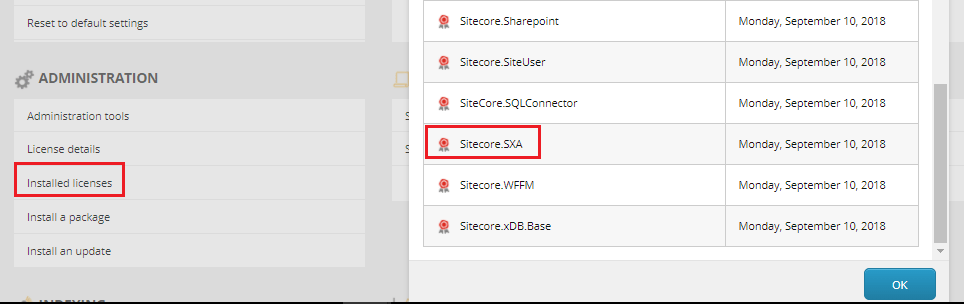
On Sitecore, go to “Control Panel” -> “Administration” -> “Installed Licenses”, scroll down until you find Sitecore.SXA
Download and install in this order
SXA needs Sitecore Powershell Extensions, so please download and install in the following order.
Sitecore PowerShell Extensions-4.7 for Sitecore 8.zip (https://marketplace.sitecore.net/en/Modules/Sitecore_PowerShell_console.aspx)
Sitecore Experience Accelerator 1.6 rev. 180103 for 9.0.zip
https://dev.sitecore.net/Downloads/Sitecore_Experience_Accelerator.aspx
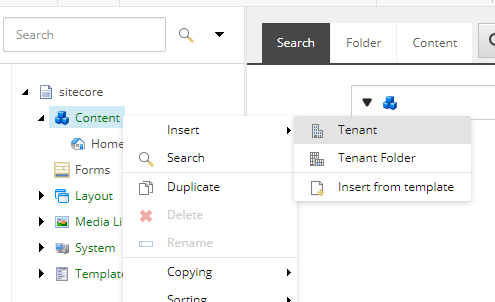
After the installation process. Sitecore will allow you to create a new tenant
1)Right Click on “content” -> “insert” -> Tenant
2)Now, Let´s create a new Website
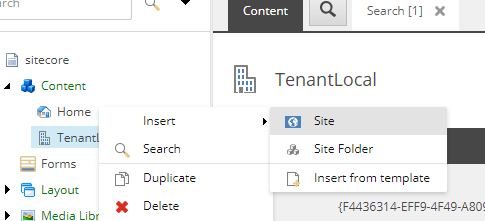
Site name: sxa test
Hostname: sxatest.local
Now add this entry to your “C:\Windows\System32\drivers\etc\hosts” 127.0.0.1 and also add this entry to sxatest.local and to IIS
Hit “publish Site” and access your website in a new browser:
The Homepage will look similar to this one
The Website structure is shown below:
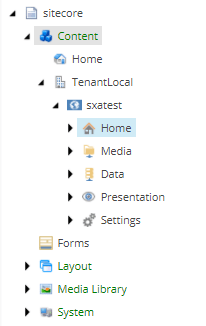
Now, let´s explore the Experience Editor Open the home Item (/sitecore/Content/TenantLocal/sxatest)
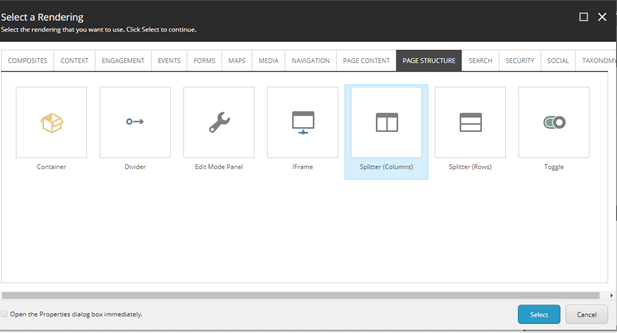
Click “add here”, and you will see the “select rendering” window, this will show you all the components available to add,
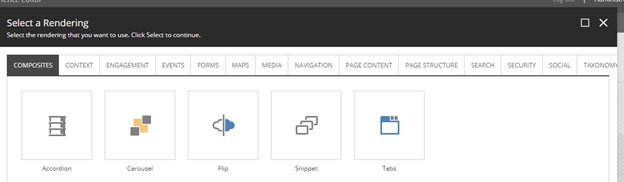
Let´s Explore the “Carousel Component”, The Carousel is a component frequently used by Content Authors, it consists of some slides with a timer
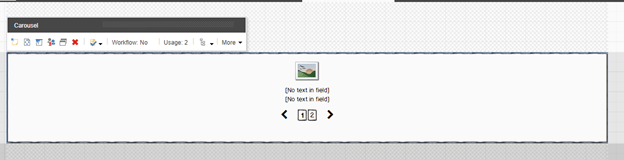
Template Name: Carousel Slide
Fields:
| Slide image | Image |
| Slide Text | RichtText |
| Slide Link | General Link |
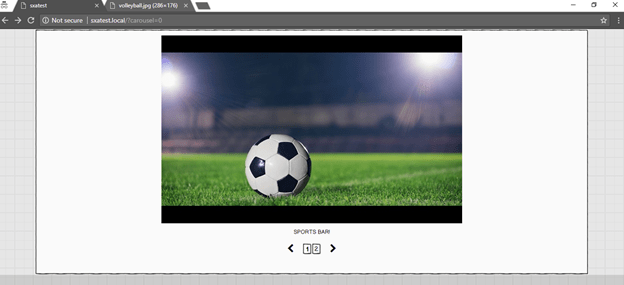
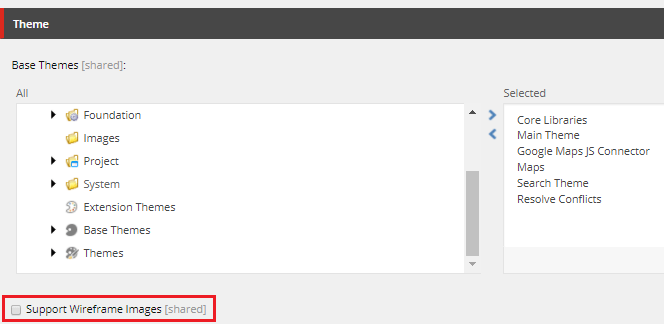
If you are Seeing a BIG ‘X’ instead of the image, you should find your Theme, and uncheck the “Support Wireframe Images” Property.
Probably, the theme selected is the “wireframe, so on Content editor, find this item
/sitecore/media library/Themes/Wireframe as perform the changes as instructed .
Flip Component
The Flip component is triggered when the user clicks on it, it produces a visual effect as picture below shows you: “add here” -> “Composites” -> Flip Component”
Template Name: Flipside
Fields:
| Heading | RichtText |
| Content | RichtText |
Now Let´s explore the “Page Structure Components”, there we can find the Splliter, and this enables us to create multiple columns on the page
Please Create a new page
Right Click on /sxatest/home -> Insert -> Page
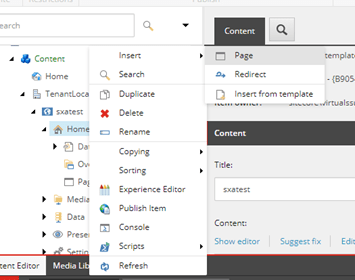
Open the Page on the Experience Editor
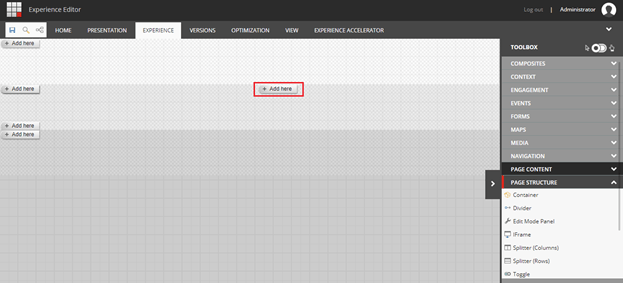
Add the Splliter (columns)
Now we have 2 columns, this “add here” in red shows us a new place to add a component
Another very usefully component is the “Breadcrumb”, so let´s added this to the page
“add here “ – > Navigation -> Breadcrumb
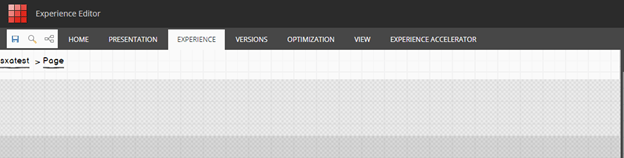
I will add an “image” and a ‘Tab” Component
“add here” -> “media” – > Image
“add here” -> “media” – > Tabs
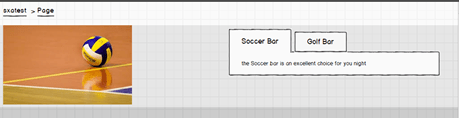
Template Name: Tab Item
Fields:
| Heading | RichtText |
| Content | RichtText |
Context
Let´s explore a little bit futher, add a new version of the “page”( /sitecore/content/TenantLocal/sxatest/Home/page) in Portuguese(Brasil)
Now open the Experience Editor and add a new Component to the footer
“Add here” -> “Context” – >Language Selector”

This component will detect automatically the Languages on this Page and it will create a drop-down with the languages, this will enable the user to switch between the languages of this page easily.
I hope you enjoyed!
Thanks

 Sitecore Tips
You must be logged in to post a comment.