
Installing :
Step 1 :
Download the Appropriate version of Sitecore Horizon for your Sitecore 10.x
ex : Sitecore Horizon 10.0.0.zip
After downloading the zip file, extract the zip file
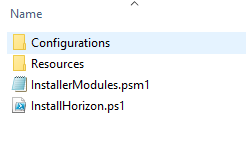
Open the configuration file and edit the parameters
take a look at some parameters :
horizonInstanceName
sitecoreCmInstanceName
identityServerPoolName
licensePath (don’t forget this)
topology
Make sure your domain is the same, ex “.dev.local” for your current Sitecore instance and your Horizon installation
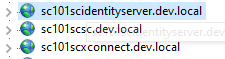
The installation process will create a new IIS website

param (
  [string]$horizonInstanceName = "horizon.dev.local",
  [string]$horizonPhysicalPath = "C:\inetpub\wwwroot\$horizonInstanceName",
  [string]$horizonAppUrl = "https://$horizonInstanceName",
  [string]$sitecoreCmInstanceName ="sc101scsc.dev.local",
  [string]$sitecoreCmInstanceUrl = "https://$sitecoreCmInstanceName",
  [string]$sitecoreCmInstansePath = "C:\inetpub\wwwroot\$sitecoreCmInstanceName",
  [string]$identityServerPoolName = "sc101scidentityserver.dev.local",
  [string]$identityServerUrl = "https://$identityServerPoolName",
  [string]$identityServerPhysicalPath = "C:\inetpub\wwwroot\$identityServerPoolName",
  [string]$licensePath = "C:\license\license.xml",
  [bool]$enableContentHub,
  [ValidateSet("XP", "XM")]
  [string]$topology = "XM"
)
Step 2: Run the script
Open powershell in administrator mode and execute “./InstallHorizon.ps1”
Installation of Sitecore Horizon
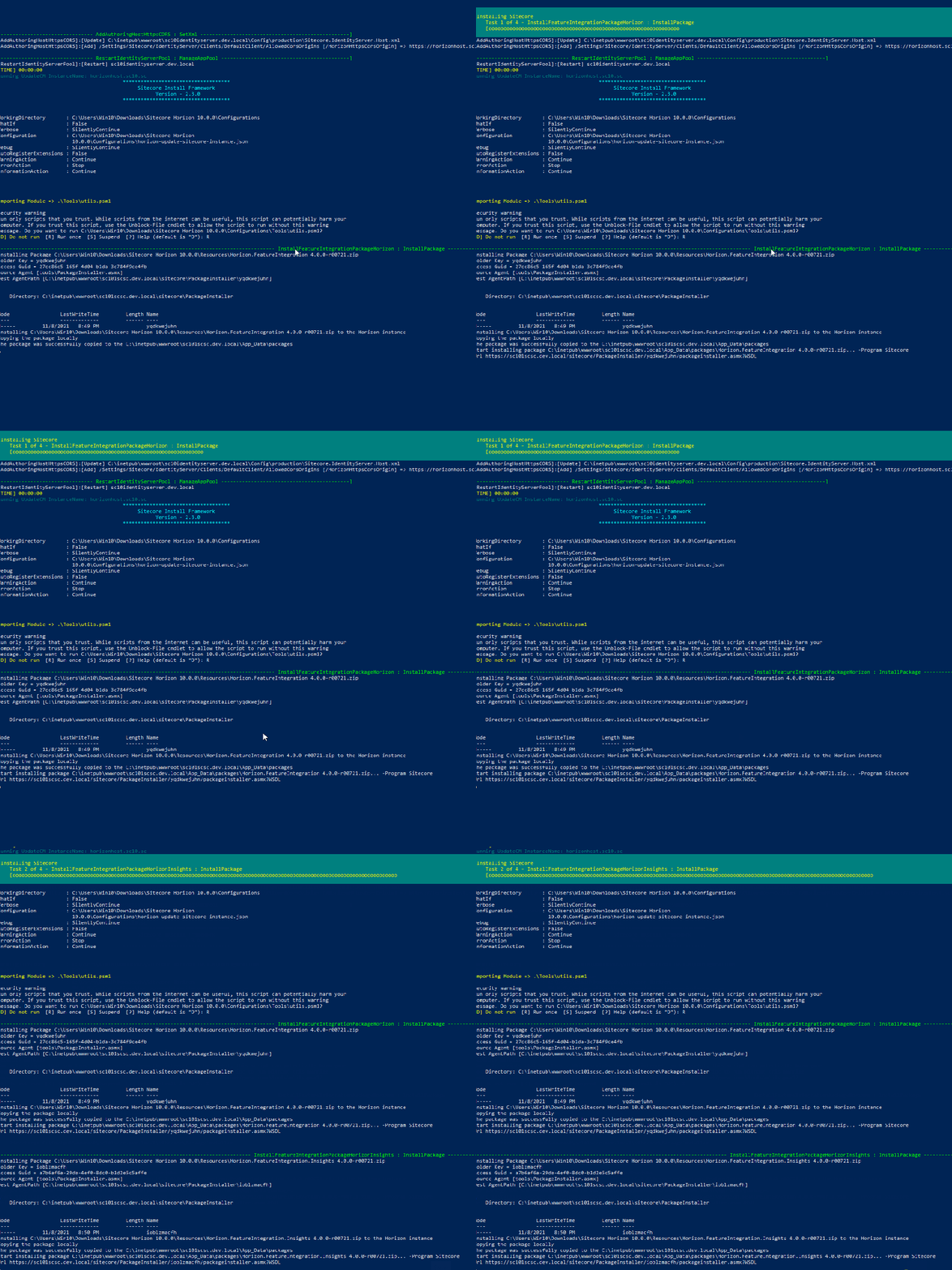
If you don’t see any errors, Open our Sitecore Instance and double-check the new icon!

Step 3: Explore Horizon
Click on the icon and open Sitecore Horizon, it should look the same as below
In order to take full advantage of the product, read the Sitecore official documentation and see how to obtain the best of the tool


 Sitecore Tips
You must be logged in to post a comment.