While preparing a demo recently, I ran into a familiar enterprise problem.
The Sitecore environment I was given wasn’t a typical local setup. It was a client-provided machine with strict security controls, including limited outbound access, blocked registries, and very little room to “just try things.” From a security standpoint, this is understandable. From a delivery standpoint, it can slow everything down fast.
Rather than spending time negotiating network changes for a short demo, I decided to spin up a Sitecore 10.4 Docker instance and adapt the approach to the constraints of the environment.
This post isn’t about Docker commands. It’s about making Docker work when standard workflows are not an option.
Standard Sitecore 10.4 Docker Setup (Baseline)
The starting point was the official Sitecore Docker deployment package:
https://github.com/Sitecore/container-deployment/releases/tag/sxp%2F10.4.0.010422.1819
Following the official documentation:
You eventually end up running the familiar initialization command:
.\compose-init.ps1 -Topology "xp0" -LicenseXmlPath "c:\license\license.xml" -SitecoreAdminPassword "pass@12345" -SqlSaPassword "pass@12345"Under normal conditions, this prepares everything so you can simply run:
docker compose upAnd move on with your day.
The Real Constraint: Network and Registry Access
In this case, Docker consistently failed while pulling one of the required images. The configuration itself was fine. The problem was external.
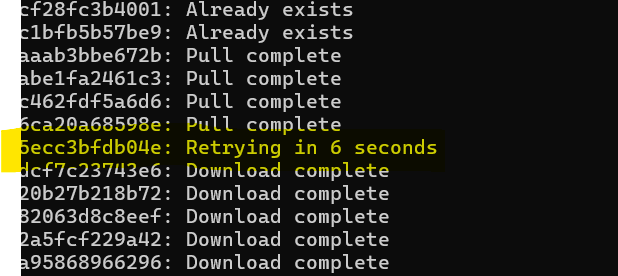
Outbound access to container registries was restricted, and one specific image could not be downloaded. Because this file could not be download , Docker treats this as a blocking step, the entire environment refused to start.
If you’ve worked in enterprise environments long enough, this situation probably sounds familiar.
The Architectural Decision: Work With the Constraints
Instead of pushing for registry access or asking for security exceptions, I went with a more pragmatic approach.
I pulled the problematic image on a machine with proper access, exported it, and then copied it over to the restricted environment. Not ideal, but effective.
Let’s review a little bit about Docker commands below the command to pull the image using:
docker pull scr.sitecore.com/sxp/sitecore-xp1-solr-init:10.4-ltsc2022And then exported to a tar file:
docker save -o sitecore-xp1-solr-init-10.4.tar scr.sitecore.com/sxp/sitecore-xp1-solr-init:10.4-ltsc2022The file is large, around 4.1 GB, so transferring it takes a bit of time. Once it’s there, Docker stops trying to reach the registry.

Loading the Image on the Restricted Machine
This is the small but important step that’s easy to miss.
After copying the tar file to the restricted machine, load it into Docker using:
docker load -i sitecore-xp1-solr-init-10.4.tarDocker will unpack the image and register it locally. There’s no magic here. It just takes a minute or two, depending on disk speed.
To make sure everything is in place, you can quickly verify with:
docker imagesOnce the image shows up in the list, go back to the project directory and run:
docker compose upAt this point, Docker no longer tries to pull the image from the registry, and the environment starts up as expected.
Trade-offs and When This Makes Sense
This isn’t a long-term strategy, and it’s definitely not something I’d recommend for CI/CD or active development.
There are obvious downsides:
- manual steps
- large files to move around
- easy to forget when images change
But for demos, proofs of concept, or short-lived setups in heavily restricted environments, this approach is often the fastest way forward.
Sometimes the job isn’t about building the perfect setup. It’s about getting something working without fighting the system you’re in.
Final Thoughts
Enterprise environments rarely look like documentation examples. Security, compliance, and network restrictions are part of the reality, and working around them without breaking rules is often where architectural decisions really matter.
This isn’t about knowing Docker commands. It’s about understanding constraints, picking your battles, and keeping delivery moving.
Not pretty, but it gets the job done.

 Sitecore Tips
You must be logged in to post a comment.