Hi Guys, after upgrading a Sitecore 9.3 to 10.4 Scaled environment I found myself with a message below
| Search operation not supported with xConnect collection-only configuration Description: An unhandled exception occurred. Exception Details: System.NotSupportedException: Search operation not supported with xConnect collection-only configuration Source Error: An unhandled exception was generated during the execution of the current web request. Information regarding the origin and location of the exception can be identified using the exception stack trace below. |
Upgrading Sitecore Instances: Resolving XConnect Search Connection Issues
I recently upgraded several Sitecore instances and encountered the same error multiple times. To help my future self (and anyone else who might need it), I’m documenting the steps I took to resolve the issue—just like I do for all my other blog posts!
1. Open the XConnect Client Configuration on Your CD Server
On your Content Delivery (CD) server, locate and open the following App_Config/Sitecore/XConnect.Client.Configuration/Sitecore.XConnect.Client.config
- Find the
<clientConfig>node. Because you’re on a CD server, make sure you select the configuration node whererole:required="Content Delivery …"is specified. - Add the following line under the
<clientConfig>node (within the correctrole:required="Content Delivery"section): <param desc="searchConnectionStringname">xconnect.search</param>
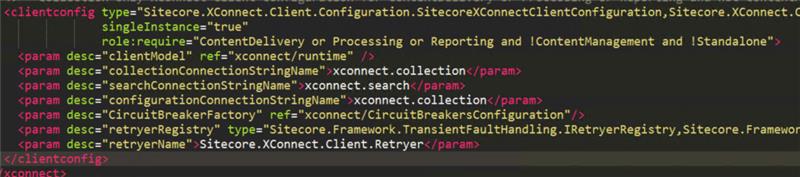
Keep in mind the “order” of that “xconnect.search” matter, If you put at the end for instance, it won’t work, put in the middle as the image shows
2. Copy the Connection String and Certificate from Your CM Server
- On your Content Management (CM) server, open your
ConnectionStrings.configfile. - Locate the following connection string
<add name="xconnect.search" connectionString="..." />Copy this connection string (the entire<add>element or just the connection string value itself) to your CD server’sConnectionStrings.config. - In the same file, find the entry for
xconnect.search.certificate. Copy that to your CD server as well.
That’s it! After making these changes, your CD server should be properly configured with the xconnect.search connection string and certificate, resolving the XConnect search connection issues you may have encountered.

 Sitecore Tips
You must be logged in to post a comment.