
Context
In the last few months, I have encountered multiple SSL issues, so I decided to compile a set of guidelines to help prevent IIS errors in Sitecore.(to be used by me in future reference! =D)
This year started with some xDB errors “403 Forbidden” error, initially affecting a few environments. Following an in-depth analysis, I created this documentation to address and resolve the problem. The root cause was the complexity of the three-tier certificate setup, which is often overlooked in standard guides.
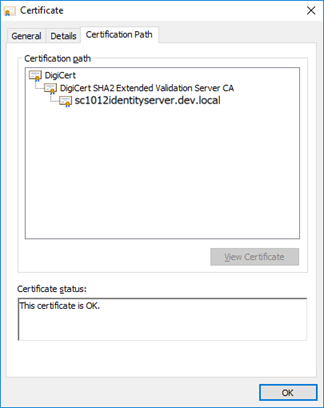
Also, In XConnect or other situations, you might usually see SSL Issues, like Expired certificates, or permission errors.
If you have a new Certificate start by configuring the certificate, or if you need to generate a new one, follow this guide , Or use the steps below to see if the certificate is properly installed/validated
Step 1 : Install the Certificate by Double-Clicking
- Double-click the .crt or .cer certificate file.
- The Certificate Import Wizard will open automatically.
- Click Install Certificate to begin the import process.
- Select Local Machine as the store location (this requires administrative privileges) and click Next.
- When prompted for a certificate store, choose Place all certificates in the following store and select Personal.
- Click Next and then Finish to complete the installation.
Step 2: Bind the Certificate in IIS
If you’re using the certificate for a website hosted on IIS, follow these steps to bind the certificate to your site.
- Open Internet Information Services (IIS) Manager.
- In the Connections panel, expand your server node and click on Sites.
- Select the site to which you want to bind the SSL certificate.
- In the Actions panel on the right, click Bindings.
- In the Site Bindings window, click Add.
- For Type, select https.
- In the SSL Certificate dropdown, select the certificate you just installed.
- Click OK and then Close to complete the binding.
Step 3: Verify the Certificate Installation
- Open a browser and navigate to the site using https://.
- Click on the padlock icon in the address bar and view certificate details to confirm it’s correctly installed.
- Alternatively, you can use SSL Checker tools online to verify that the certificate is correctly installed.
Step 4: Grant Permissions to the Certificate for the IIS Application Pool
Certain application pools need access to the private key of the SSL certificate, especially if you’re using a custom user identity for the app pool. Here’s how to grant access:
- Open the Microsoft Management Console (MMC) (use Win + R, type mmc, and press Enter).
- Navigate to Certificates under Console Root > Personal > Certificates.
- Locate the certificate you imported for your website. Right-click on it and select All Tasks > Manage Private Keys.
Grant Permissions to the Application Pool User
- In the Permissions for [certificate name] window, click Add.
- In the Select Users, Computers, Service Accounts, or Groups window:
- Type IIS AppPool\YourAppPoolName, where YourAppPoolName is the name of your application pool (e.g., IIS AppPool\DefaultAppPool).
- Click Check Names to verify it, then OK.
- With the app pool identity selected, check Allow for Read permissions to grant access.
- Click OK to save the changes.
Alternative Method for Permission Issues
If you experience issues with Step 2, you can change the application pool identity to Network Service. Then, repeat Step 2 to add permissions for Network Service instead, simplifying the process.
Step 4: Understanding three tier Certificates
When working with an SSL certificate that includes three tiers (the root certificate, an intermediate certificate, and the primary certificate), it’s essential to verify that the certificate chain is complete and correctly configured. Here’s how to check and troubleshoot a multi-tiered SSL certificate.
How to Verify a Three-Tier SSL Certificate Chain
1. Check the Certificate Chain in Windows
- Open the Certificate: Locate the .crt or .cer certificate file, double-click to open it, and go to the Certification Path tab.
- Verify the Chain:
- You should see three levels: Root Certificate, Intermediate Certificate, and Primary (Server) Certificate.
- If any certificates are missing or the chain is broken, there may be issues with your certificate installation.
2. Use IIS Manager to Verify the Chain
- Open Internet Information Services (IIS) Manager.
- Select your website and click Bindings in the Actions panel.
- Click on your HTTPS binding and then select Edit to view the certificate.
- Click View Certificate and check the Certification Path to ensure all tiers are in place.
Troubleshooting Tips
Issue 1: Missing Intermediate Certificate in the correct folder
- Symptoms: Clients may see certificate errors, such as “untrusted certificate” or “certificate not valid.”
- Solution: Move the missing intermediate certificate to the server’s Intermediate Certification Authorities store:
- Open MMC and navigate to Certificates (Local Computer) > Intermediate Certification Authorities > Certificates.
- Move the intermediate certificate here if it’s missing.
Issue 2: Missing Root Certificate
- Symptoms: The chain is incomplete or fails validation.
- Solution: Ensure the root certificate is correctly installed on the server:
- Open MMC and go to Certificates (Local Computer) > Trusted Root Certification Authorities > Certificates.
- Import the root certificate here if it’s missing.
Issue 3: Multiple Intermediate Certificates
- Symptoms: Some services might experience issues if there are multiple intermediates with similar names.
- Solution: Verify that only the required intermediate certificates are installed. Remove any duplicates from the Intermediate Certification Authorities store.
Types of errors this guide can help you
- xConnect Certificate Issues
- Expired or Invalid SSL Certificates
- Mixed Content Warnings
- Certificate Chain Trust Issues
- SSL Provider Errors in xConnect Setup
- Renewing Expired SSL Certificates
- SSL Certificates for Local Sitecore Sites and xConnect Issues
Additional References
________________________________________________________________________________________________________
Due to the heavy usage of AI for content generation, I had the idea of creating a stamp of “Written by Human”, to show that this is a human-generated article!



You must be logged in to post a comment.